

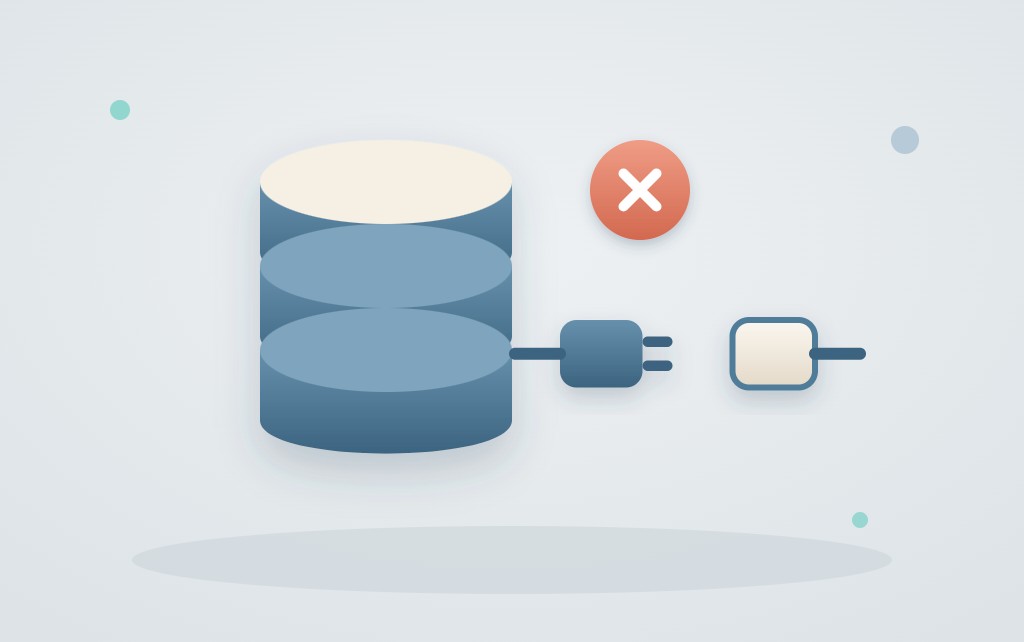
You open your site and see only one line of text: “An error occurred while establishing a database connection” (in English, “Error establishing a database connection”). Also wp-admin It's not working anymore. The database connection error means that WordPress cannot access the MySQL database. Check the database information in wp-config.php, whether the database server is running and whether the database is corrupted; repair it using WP_ALLOW_REPAIR or restore a backup.
Don't panic. Your pages and orders are almost always still in the database; it's just that access to them is blocked.
What does ‘error establishing a database connection’ mean?
"Error establishing a database connection" means that WordPress cannot connect to the MySQL or MariaDB database that contains all your content and settings. I often compare it to a filing cabinet. Everything from your site is in there, but WordPress has the wrong key, or the cabinet is in a room that’s locked. More background in How WordPress, PHP, and the database work together.
Do you see what I mean? wp-admin “One or more database tables are unavailable”—in this case, the connection works, but the tables are corrupted. And “Cannot select database” means that the login credentials are correct, but the database itself is missing, has a different name, or the user does not have permissions to access it.
| What you're seeing or have just done | Probable cause | Start at |
|---|---|---|
| Just moved or changed your database password | Data in wp-config.php are incorrect | Step 1 |
| “Cannot select database” error message” | Database deleted, renamed, or without permissions | Step 1 |
| phpMyAdmin and other sites on your account aren't working either | Database server down or overloaded | Step 2 |
| Errors come and go when things get busy | Connection limit or insufficient server resources | Step 2 |
Report in wp-admin About Unavailable Tables | Damaged tables | Step 3 |
wp-config.php has been modified even though no one changed anything, or there are unknown files | Possible hack | Scan for malware and read WordPress website hacked, now what? or have the repair done through WordPress hacked |
In most of the cases I see, it involves the first row. Be sure to download a copy of wp-config.php and check to see if there's a recent backup, because a single typo in that file will immediately cause a new error. If you suspect a hack, it helps that Imunify scans every file change on Surver's shared hosting plans.
Step 1: Check the database information in wp-config.php
The database data in wp-config.php must match exactly the database and database user in your hosting control panel, and that's exactly where things usually go wrong.
- Open
wp-config.phpin your site's root directory via File Manager in cPanel or via (S)FTP. - Find the four lines
define( 'DB_NAME', 'database_name' );,define( 'DB_USER', 'database_user' );,define( 'DB_PASSWORD', 'password' );anddefine( 'DB_HOST', 'localhost' );. - Compare them in cPanel under MySQL databases with the name of the database and the database user.
- If you're unsure about the password, set a new password for the database user in your hosting control panel and enter exactly the same one
DB_PASSWORD. - Check in the same location to see if the user is associated with the database with full permissions.
- Save the file and refresh your site.
When editing, pay attention to the small details. Use straight single quotation marks, not the curly quotes found in Word or emails, and do not include spaces inside the quotation marks. DB_HOST is usually localhost, but some hosting providers use a different server name or port, so check with them if you're unsure. If you get the error right after a migration, the file often still contains data from the old host. The complete step-by-step guide is available at Moving a WordPress Website, and if you don't want to do it yourself, our moving service as well as the database data.
Step 2: Check whether the database server is running
If you can't log in to phpMyAdmin in cPanel, the problem isn't with WordPress but with the database server. Also check whether other sites on your account are working and whether your host has reported an outage. At Surver, you can check this at status.surver.nl. Usually, the issue is caused by overload due to too many simultaneous connections (the “too many connections” message), a full disk, or a server restart. If a high-traffic site frequently encounters this problem, then managed cloud hosting worth considering.
I want to be honest here. If the database server is down, there’s not much you can do on your own. That’s your hosting provider’s job, and they’re the ones who should report it. Contact them and mention the time it happened and what you’ve already checked. I’d rather not put a PHP test script with your database password—as some guides recommend—on the server, because such a file often gets left behind. If you want to take a broader look at why your site is down, read WordPress Website Offline.
Step 3: Repair Damaged Database Tables
You can repair damaged tables using phpMyAdmin, WP-CLI, or WordPress’s built-in repair page, in that order of preference. Tables can become damaged or corrupted after a server crash, a full disk, or an update that fails partway through.
The easiest way is to use phpMyAdmin. Choose your database, select all tables, and at the bottom, click Repair Table. If you prefer to work from the command line, you can do so via SSH using WP-CLI, which is available on all Surver shared hosting plans. With wp db check you can see which tables are incorrect, and WP DB Repair She fixes them.
If neither of those works, WordPress has its own troubleshooting page. Enter the line define( 'WP_ALLOW_REPAIR', true ); in wp-config.php, above the line /* That's all, stop editing! */. Then go to jouwdomein.nl/wp-admin/maint/repair.php and select Repair Database.
Delete that line immediately after the repair. As long as WP_ALLOW_REPAIR If it's enabled, anyone can open that page without logging in. That's why I only use this method when phpMyAdmin and WP-CLI aren't available.
Step 4: Restore a backup if nothing else works
If none of the above works, first replace the core files and only then restore a backup. Upload the new folders wp-admin and wp-includes from wordpress.org and let wp-content and wp-config.php If that doesn't help, restore the database to a state prior to the problem. On Surver's shared hosting plans, you can do this yourself at no cost using JetBackup 5 in cPanel, where you can choose to restore just the database or just the files. Be sure to back up the current state beforehand, as it won’t be automatically preserved during the restore. See Restore a backup.
With a WooCommerce online store, everything that happened after the backup was taken will be lost—including orders, customer accounts, and inventory changes. Make a note of the orders from your payment provider and the WooCommerce emails beforehand. That’s why troubleshooting always takes priority over restoring a backup, because restoring a backup to a live online store will cause you to lose today’s orders. More on this in WooCommerce Backup.
At Surver, we monitor the servers, including the database server. If the error is on your site itself, then on our Managed WordPress Hosting Everything at your fingertips, from phpMyAdmin and File Manager in cPanel to SSH and WP-CLI. To avoid repetition, only change the database password in conjunction with wp-config.php and after moving, test your connection before changing the DNS settings. With uptime monitoring you'll know before your customers do, and within WordPress Management Surver checks every minute to see if your site is accessible. If you receive a different notification, please check the Overview of WordPress Error Messages.
Frequently Asked Questions
Will my content be lost if this error occurs?
Usually not. The error is related to the connection to the database, not the data itself, so your pages, posts, and orders are still there. You'll only need a backup in the event of serious damage.
Why am I getting this error after moving?
Usually, the database name, username, password, or host are correct wp-config.php not with the new hosting. Sometimes the database hasn't been imported yet, or the user hasn't been added to it yet.
Can Surver fix this for me?
If the issue is with the database server, that’s Surver’s responsibility, and you can check for outages at status.surver.nl. If the cause is on your site, you can restore the database yourself using JetBackup 5 or ask support to take a look. We do not promise a recovery time in advance.
