

A major update for WooCommerce or your page builder is coming up, and you’re hesitant to click the button because you don’t know what will still work afterward. A staging environment is a separate copy of your WordPress website where you can test updates, new plugins, and changes before deploying them to your live site. This prevents any errors from being immediately visible to visitors and customers. I’ll explain when you need one, how to set one up, and how to deploy changes to your live site without losing any orders.
What is a staging environment?
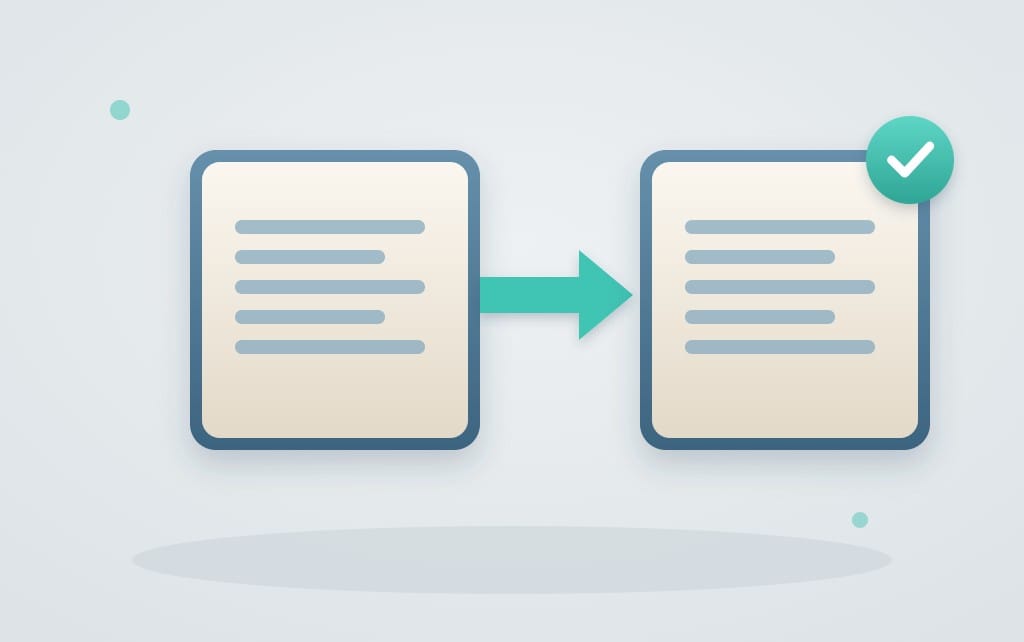
A staging environment, also known as a staging site, is a copy of both the files and the database of your live site, isolated on a subdomain or in a subfolder. In this context, your live site is referred to as the production environment. I always think of staging as the dress rehearsal for a performance. Everything goes just like on opening night, except there’s no audience in the theater. If an update breaks the copy, no one will notice, and you’ll have plenty of time to figure out why. Staging is part of good hosting, just like backups and monitoring. Read more What is managed WordPress hosting?.
Staging is often confused with other types of copies, even though each serves a different purpose.
| Form | What It Is | What is it for? | For whom |
|---|---|---|---|
| Staging environment | Protected copy on the same hosting service | Testing Updates and Changes | Every site administrator |
| Local development environment | A copy on your own computer | Building and Programming | Developers |
| Clone | A separate copy of your installation | Basis for staging or a second site | Site Administrators |
| Backup | File and Database Snapshot | Rolling Back After an Error | Everyone |
A backup does not replace staging. A backup allows you to recover data after the fact, while staging prevents things from going wrong.
When should you test something on the staging environment first?
You should test on the staging environment whenever you make a change that could affect how your site works—not just when you make changes to the content. Examples include a major WordPress update, a new version of WooCommerce, a resource-intensive new plugin, or a theme change. Also, a higher PHP version, custom code changes, and, of course, a redesign should be done on a copy first. Editing a text or publishing a blog post doesn't have to go through staging. That's just content, and you can publish it directly to the live site.
If I could give you just one piece of advice, it would be this: Always test WooCommerce and page builder updates on staging first. These are the updates where I see the most broken checkouts and misaligned pages, precisely because they make deep changes to your site. A small plugin that just adds a widget is fine to update right away if you’ve just made a backup. You can read about how to set up your entire update routine in Updating WordPress Safely. Testing on the staging environment is also a standard part of good WordPress maintenance, even if you outsource it.
How to Set Up a Staging Environment
You can create a staging environment through your hosting control panel, using a plugin, or manually. Keep in mind that each copy uses additional storage space. Be sure to delete it when you're done; otherwise, after a few months, you'll have a forgotten site with outdated plugins on your account.
Through your hosting control panel
This is the method I recommend to everyone. You don't need any additional plugins, and the copy runs on exactly the same server settings as your live site.
- Clone your WordPress installation to a subdomain or subfolder using the cloning feature in your hosting control panel or installer, such as Installatron.
- Lock the copy and log in to it.
- Make the update or change.
- Test the site as a visitor would, including on your phone.
- Deploy the change to production, as described in the following section.
Using a plugin
WP Staging is the best-known plugin. The free version clones your site to a subfolder, but pushing to the live site is only available in WP Staging Pro. The downside is that the copy runs within the same installation and the same account. If your hosting provider supports it, I therefore prefer to go with the first option.
Manual
To do this manually, create a subdomain, copy the files and the database, and then adjust wp-config.php and specify the site URL to restrict access. That's a job for developers. If you don't have any on staff, our webmaster service take care of it for you. The technical steps are largely the same as Moving a WordPress Website.
From staging to production without data loss
With a full push, the staging database overwrites the one on your live site, and everything that has been added to the live site since the clone was created will be lost. This applies to orders, newsletter subscriptions, form submissions, and comments, as well as the user list. For a live e-commerce site, this is the biggest risk of staging, and it’s almost never mentioned. My advice, therefore, is to never blindly restore the entire database. Only push the files, transfer only the database tables that you’ve actually modified, or simply reapply the change to the live site now that you know it works. For online stores, the step-by-step approach is outlined in How to Update WooCommerce Without Breaking Your Checkout.
Always make a backup of your live site yourself first, because when you restore an older backup, the current state isn't automatically preserved. Then I go through this checklist.
- Create a full backup and learn how to Restore a backup performs.
- Deploy the change outside of peak hours.
- Place a test order right away and test your forms.
- Clear the cache and test the site again, both on your desktop and on your phone.
If you don't want to do this yourself for your online store, then WooCommerce maintenance Take the hassle out of testing and updating.
Keep your staging environment isolated
A staging environment must be invisible to Google and must not reach real customers. Without proper isolation, Google will see the same site twice, and the copy will compete with your live site. Therefore, set the following under Settings > Reading the check mark next to Search engines discourage indexing this site (noindex), or protect the copy with a password or IP restriction. The mistake I see most often is that this setting gets carried over to the live site. Then your actual site slowly disappears from Google, and no one realizes why. Some plugins recognize a staging environment by the constant WP_ENVIRONMENT_TYPE in wp-config.php and then put themselves in a safe position.
When it comes to an online store, security measures go beyond Google. Your test data includes real customers and orders, so set the payment provider to test mode and make sure transactional emails aren’t sent to real customers. Nothing is more confusing than a customer receiving an order confirmation for a test order.
What we handle as standard at Surver is the cloning feature itself. On all shared hosting plans, you can create a staging environment by cloning your installation in Installatron, and on Surver Cloud, we’ll set it up for you. You can restore backups of your live site on shared hosting free of charge using JetBackup 5 in cPanel. If you want to restore a backup to a copy, please contact our support team. You can read more about the plans on our Managed WordPress Hosting. If something did go wrong during the live stream, read about what to do in the event of a Site Down After an Update.
Frequently Asked Questions
Does a staging environment cost extra?
With many hosting providers, you can clone your site using the tools that come with your plan. At Surver, Installatron—which lets you clone your site—is included in all shared hosting plans. The WP Staging plugin lets you clone your site for free, but you’ll need WP Staging Pro to push it to production.
Is WP Staging safe?
WP Staging is a widely used plugin from the official WordPress repository. The main risk lies in a copy that remains publicly accessible. So make sure to restrict access to the copy and delete both the plugin and the copy once you're done testing.
Does a staging environment affect my SEO?
Only if Google indexes the copy. If you block it with "noindex" or a password, staging will have no effect on your rankings. After each deployment, make sure the "noindex" setting hasn't carried over to your live site.
