

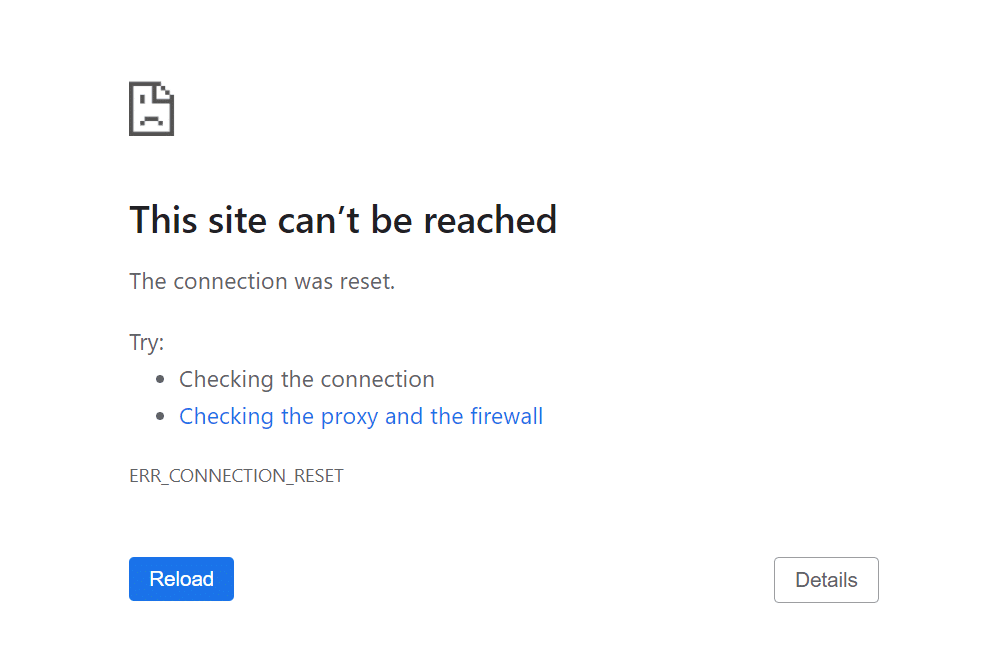
When opening a page, do you get the message this site is not accessible or This site can't be reached? That's a collective message: Chrome uses the same text for multiple errors, including DNS problems, timeouts and reset connections. Understanding what's behind that will speed up your solution.
What does this message technically mean?
Your browser could not build a working route to the website's server. Often it fails at DNS resolution, translating a domain name to an IP address, or there is a timeout or blockage in your network path. DNS is a core link: without correct DNS resolution, your computer simply does not know what IP address belongs to a domain.
Quick solutions to check first
- Refresh the page and open the same URL in an incognito window. This way, you will exclude annoying extensions or outdated cache.
- Test a different connection: switch from wifi to 4G/5G or vice versa. If it does work via mobile, then your local network is the culprit.
- Check to see if the site is down for everyone. Use a status service such as Downdetector to see if it is a broader problem.
- If only this site does not work, continue with the steps below.
Recognize the sub-error and choose your route
- DNS_PROBE_FINISHED_NXDOMAIN or similar DNS errors - focus on DNS cache and DNS servers.
- ERR_CONNECTION_TIMED_OUT or ERR_CONNECTION_RESET - look at firewall, proxy, VPN, router and line quality.
Fix 1 - Clearing cache, cookies and extensions.
Outdated cache or aggressive extensions can block loading.
Chrome
- Menu → Settings → Privacy and Security → Clear browsing data → choose Cookies and Cached images and files → Clear data.
- Test in Incognito. If the site works there, disable extensions and repeat until you find the jammer.
Tip: if the site does work in another browser, then the cause is almost certainly in cache, extensions or settings of your primary browser.
Fix 2 - Exclude and fix DNS issues.
DNS is often the No. 1 cause of "unreachable" messages. Start with simple recovery and switch to reliable public DNS servers if necessary.
Empty DNS cache
Windows
Open Command Prompt as administrator and execute:
ipconfig /flushdnsYou thereby empty the local resolver cache.
macOS
A practical approach without a terminal is to briefly disconnect and reconnect the network connection and, if the problem appears to be DNS specific, immediately set up your DNS servers as described below. Apple's own steps for managing DNS can be found in System settings → Network → [your network] → Advanced → DNS.
Setting up reliable DNS servers
Temporarily set up a public resolver. Two common options:
- Google Public DNS: 8.8.8.8 and 8.8.4.4. Official installation instructions show by platform where you set this up.
- Cloudflare DNS: 1.1.1.1 and 1.0.0.1. (Known as a fast, privacy-oriented option.)
Windows 11
Settings → Network and Internet → Properties of your active connection → DNS server mapping → Edit → Set Manual and enter the addresses. A step-by-step guide can be found at Windows Central.
macOS
System settings → Network → [your network] → Details → DNS → click on + and add the addresses.
Test the site again. If this helps, then your original DNS path was the cause. DNS is a link in the Domain Name System that translates domains to IPs; a reliable resolver makes that path more stable.
Fix 3 - Review network and security
Restart router and modem
Take your router/modem off power for 60 seconds and reconnect. Intermittent line errors and clogged NAT tables often disappear with a clean start.
Firewall, antivirus, proxy and VPN
- Temporarily disable your VPN and test.
- Check if a system proxy is active and remove testwise custom rules.
- Turn off firewall/antivirus briefly to test and then turn them back on. Such layers can block traffic toward specific hosts and cause timeouts.
Fix 4 - Platform-specific tips
Windows - quick network reset
- Perform DNS flush as above.
- Possibly turn your adapter off and on via Settings → Network and Internet → Advanced Network Settings.
- If it still doesn't work, change your DNS servers to Google or Cloudflare as in Setting up reliable DNS servers fix
macOS
- Remove old DNS servers and add new ones in Network → DNS.
- Briefly turn off wifi and turn it back on. This refreshes ARP and DNS cache indirectly.
Android
- Clear browser app cache and, if necessary, Android System WebView cache and data via Settings → Apps → [app] → Storage and cache. Outdated web components may block loading.
- Test via mobile data instead of wifi. If it works there, then it's because of your local network.
Do you see specific Chrome codes? Here's what they mean in practice
- DNS_PROBE_FINISHED_NXDOMAIN - the domain could not be translated to an IP. Pick up Fix 2 first: flush DNS and deploy temporary public DNS.
- ERR_CONNECTION_TIMED_OUT - the request did not make it to the server within the time limit. Consider network congestion, firewall or a server not responding. Reboot router, test without VPN/proxy and try the site again later.
- ERR_CONNECTION_RESET - the connection was actively terminated. Check security layers, proxies and extensions that rewrite traffic.
For site visitors vs. site owners
The steps above focus on you as a visitor. If you are a site owner or administrator, also run through this checklist if you yourself get notifications that your site is "unreachable."
- Status and uptime - Check an external status monitor such as Downdetector and your own uptime monitor. Broad outages require action on the hosting or DNS side.
- Domain and DNS - is your domain still active, nameservers and A/AAAA records point to the correct IPs, and recent DNS changes have been fully propagated. An error in records means untraceability, regardless of whether your server is running.
- Security and certificates - your TLS certificate has not expired and your WAF or rate-limiting is blocking legitimate traffic.
Command line for diagnosis, without fuss
- ping domain.com - quick check to see if there will be any response at all.
- tracert/traceroute domain.com - Shows your path and where it falters.
- nslookup domain.com or dig domain.co.uk - shows what IP your DNS returns. If nslookup fails on your PC but works on another connection, it is a DNS or ISP path problem.
Frequently asked questions about the error message "This site is not accessible"
Is it always the website that is broken?
No. This site is not accessible can usually be fixed locally with cache cleanup, DNS flush or setting up reliable DNS servers.
Which DNS servers are safe to test?
Google Public DNS 8.8.8.8 and 8.8.4.4 and Cloudflare 1.1.1.1 and 1.0.0.1 are common public resolvers. Google documents for each platform how to set them up.
Does a router reboot really help?
Often it does. Many timeouts and resets disappear after a reboot as temporary tables and sessions are cleaned up.
Should I empty the DNS cache on macOS with a terminal command?
It's usually faster to manually redial the DNS servers and renew the connection. Apple's DNS setup path is described in official support.
Summary
- The notification this site is not accessible is a capstone for various connection problems. First, determine whether it is DNS, timeout or blocking.
- Start small: incognito, different connection, status check via Downdetector.
- Resolve DNS issues by flushing cache and switching to public DNS servers such as Google Public DNS if necessary. Follow the official installation instructions for each platform.
- Check firewall, proxy, VPN and reboot your router.
- On macOS, you manage DNS in System Settings → Network → DNS; on Windows 11, you can set DNS manually through Network and Internet.
Do you have Surver hosting and want us to look into DNS, caching or network logs? Let us know; we'd be happy to help you with a quick diagnosis and a lasting fix.
